
Scheduling
Run now, later, on a cadence, or on every deploy.
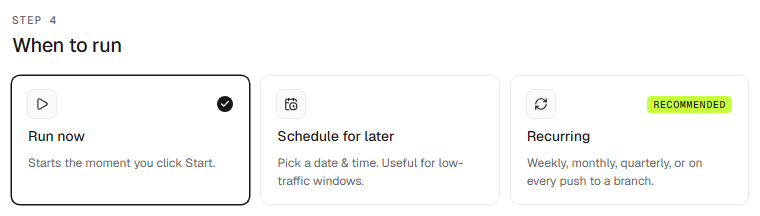
You can run a scan once or keep it running on a schedule.
Options
- Now — start immediately.
- Later — pick a date and time.
- Recurring — weekly, monthly or quarterly. Which cadences are available depends on your plan.
- On every deploy — run after each deploy of the target, using the signals your workspace counts as a deploy.
Workspace defaults live in Settings → General so new scans inherit them.
What counts as a deploy
Choose the signals under Counts as a deploy in Settings → General → Deploys. Turn on as many as your team uses; any one of them starts a run. The setting applies to every on-deploy schedule in the workspace, and with nothing selected those schedules never run.
| Signal | GitHub | GitLab | Bitbucket |
|---|---|---|---|
| A production deployment succeeds | Yes | Yes | No |
| A merge lands on the branch | Yes | Yes | Yes |
| A release or tag is published | Yes | Yes | Yes |
| Your pipeline calls the deploy hook | Any CI | Any CI | Any CI |
New workspaces count only production deployments, so a busy main branch doesn't start scans for code that isn't live yet. If your host doesn't report deployments, turn on merges or the deploy hook; until then on-deploy schedules don't run.
A production deployment succeeds — a deployment GitHub marks as a
production environment, one GitLab puts in the production tier, or one to an
environment named prod, production or live. GitHub Actions environments,
Vercel, Netlify, Render and GitLab CI environments all report deployments this
way. Bitbucket sends no deployment events; use merges or the deploy hook there.
A merge lands on the branch — any commit reaching the schedule's branch, whether from a merged pull request or a direct push. The branch is the repository's default branch unless you set another one when creating the schedule. Turn it on only when merging to that branch is what deploys it and your deploy doesn't report a deployment, such as a CI job that deploys on every push to main without a GitHub or GitLab environment; otherwise every merge starts a scan of code that isn't live.
A release or tag is published — a GitHub release, a GitLab release, or a new tag on any of the three hosts. Use it when you ship versioned releases.
Your pipeline calls the deploy hook — see Deploy hook.
A web app scan fires on the signals of the repositories linked to it as source, so deploying the repo behind a site rescans the site.
If none of the signals you turned on can reach a target, for example a Bitbucket repo with only production deployments selected, the schedule is refused with the reason instead of being saved and never running.
Several deploys in a row
Deploys never stack up into a queue of scans:
- During a run — every deploy that arrives while a scan is running adds up to one follow-up run, which starts once the current one finishes.
- Wait after a merge — merges start the scan after a delay, so the deploy the merge kicked off has finished and the scan tests the new version. Choose from starting right away up to 60 minutes; the default is 10. A merge during the wait restarts it. Other signals add no wait of their own.
- Time between runs — the least time between two runs of the same schedule: no minimum, 1 hour, 6 hours or 24 hours. A deploy inside that window moves the run to the end of it rather than being dropped.
Deploy hook
Use the deploy hook when your deploys don't show up as GitHub or GitLab deployments, when you use Bitbucket, or when the target has no connected repository.
Turn on Your pipeline calls the deploy hook in Settings → General → Deploys and save.
Click Create hook URL and copy it into your CI as a secret, for example
INTEROPT_DEPLOY_HOOK.
Call it as the last step of your deploy job, after the new version is live:
curl -X POST "$INTEROPT_DEPLOY_HOOK" \
  -H "Content-Type: application/json" \
  -d '{"asset": "https://app.example.com"}'
Without a body the call runs every on-deploy schedule in the workspace. With
asset set to an asset's URL or id, it runs only that asset's schedules, plus
the schedules of web apps that list that asset as a source repository.
| Response | Meaning |
|---|---|
202 | Received. queued is the number of schedules that will run. |
400 | The body is not empty and not {"asset": "..."}. |
404 | The URL was replaced, or the asset does not exist in the workspace. |
409 | The deploy hook is turned off in Settings → General. |
Anyone with the URL can start a scan, so keep it out of your repository. Replace URL issues a new one and stops the old one working at once.