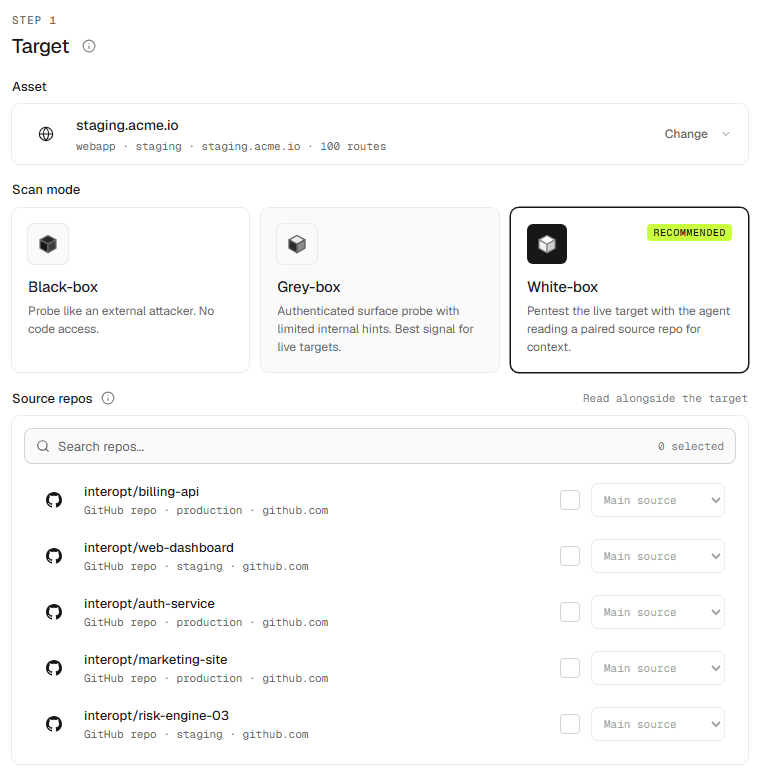
Scan modes
Black box, grey box, and white box, and when to use each.
The mode decides how much Interopt knows before a scan starts.
Black box
You give Interopt a URL and nothing else. It explores the running application the way an outside attacker would.
Grey box
You give Interopt a URL plus credentials, so it can reach the parts of the app that sit behind a login.
White box
You give Interopt a repository. The agent reads the code, then validates what it finds against the running application, so every finding is backed by both the source and the behaviour it produces. It reaches the deepest issues, returns the fewest false positives, and ties each finding to the file and line that caused it.
The running application can come from either of two places:
- Use existing URL — the target is already deployed. The agent reads the repository for context and tests the live URL you provide.
- Set up from source — Interopt boots the application from the repository in a managed runtime and tests that. No deployment, allowlisting, or firewall changes needed.
Tag each repository with a source role so the agent knows how the parts fit together, and add an env profile if the build needs environment variables. White box is the recommended mode whenever source is available.
Choosing a mode
Choose by what you can give Interopt. More context means deeper testing and more certain findings.
| You have | Use | What you get |
|---|---|---|
| Source code | White box | The deepest coverage and the strongest proof. Every finding is checked in the code and confirmed against the running app. |
| A login, but no source | Grey box | Everything a signed-in user can reach, tested from the outside. |
| Only a URL | Black box | An attacker's view of your public surface. The quickest to set up. |
When source is available, white box is the recommended choice. Grey and black box suit targets you do not own the code for, such as a vendor application, or a first look before a repository is connected.